Quick verdict: Choose Wacom for the familiar professional ecosystem and Xencelabs when the included accessory workflow and two-pen bundle better fit your desk.
A drawing tablet is not only a specification sheet. The real choice is whether the pen surface, controls, driver behavior, accessories, and desk layout let an artist work for hours without fighting the hardware. This comparison focuses on Wacom Intuos Pro and Xencelabs Pen Tablet Medium Bundle, with Huion and XPPen noted when a display tablet is the better category.
This is an editorial desk review based on public product pages, support documentation, pricing or license pages where available, and design-production workflow analysis. It does not claim private lab access, undisclosed vendor briefings, or direct hands-on review unless a page says so. Readers can review About Design Overflow and our editorial policy before relying on any recommendation.
Commercial link: Check current Wacom Intuos Pro details. Design Overflow may earn a commission if a partner credits this link, but the recommendation above is based on fit, license clarity, support risk, and source evidence.
Quick Verdict Matrix
| Option | Best fit | Main strength | Watch before buying |
|---|---|---|---|
| Wacom Intuos Pro | Studios that value a familiar professional ecosystem | Redesigned line, Pro Pen 3 positioning, and broad category recognition | Can cost more once accessories and sizes are considered |
| Xencelabs Pen Tablet Medium Bundle | Artists who want a complete tablet and control package | Two pens, Quick Keys remote, wireless connection, and many accessories in the bundle | Ecosystem familiarity may be lower than Wacom for some studios |
| Huion Kamvas Pro 16 2.5K | Artists who need a display tablet instead of a pen tablet | Pen display workflow with screen drawing and QHD positioning | Different category with more desk, cable, and color considerations |
| XPPen Artist Pro 16 Gen 2 | Display-tablet buyers comparing value specs | Published 16-inch display, high pressure levels, and wide color-gamut claims | Display-tablet support and desk setup need closer review |
| Studio support model | Teams managing several artists and machines | Driver reliability, replacement accessories, and onboarding consistency | Often ignored until a deadline breaks the workflow |
What Actually Separates Pen Tablets
Pressure levels and marketing language are less useful than workflow fit. A studio should ask whether the tablet size matches the drawing style, whether controls reduce keyboard reaching, whether wireless behavior is stable enough, whether drivers are supported across studio machines, and whether replacement pens, nibs, remotes, and cables are easy to source.
Wacom Intuos Pro: best familiar professional ecosystem
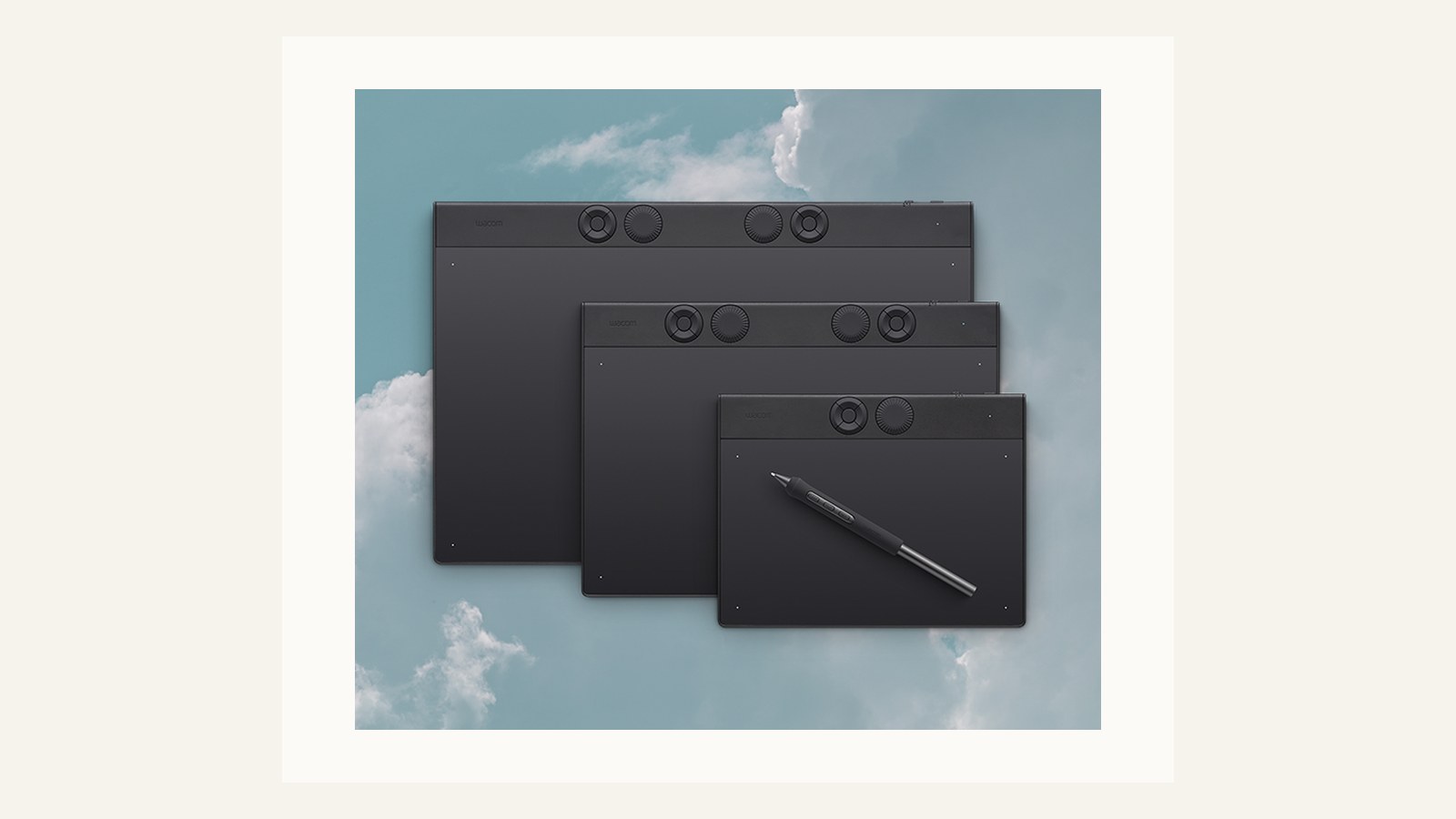
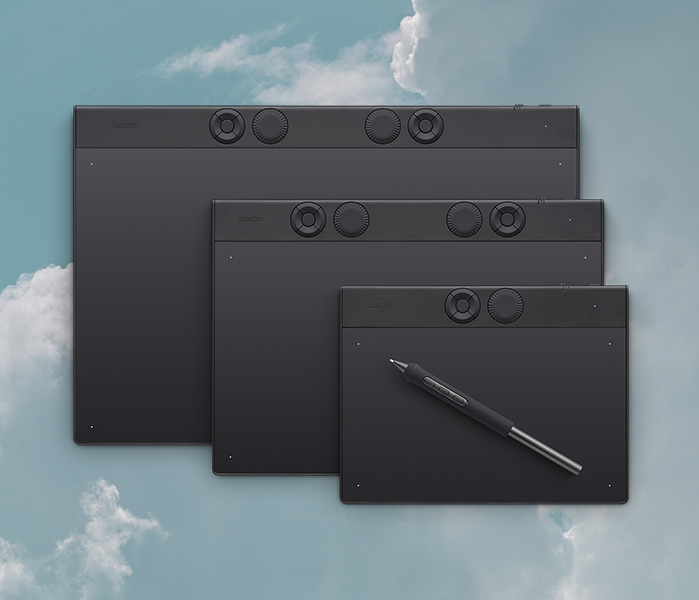
Wacom describes the redesigned Intuos Pro with the Pro Pen 3, responsive controls, and ergonomic wireless-ready design. The value is familiarity. Many studios already know how Wacom fits retouching, illustration, and concept workflows. That can reduce support friction when multiple artists share machines or freelancers join a project.
Xencelabs Pen Tablet Medium Bundle: best bundled workflow value
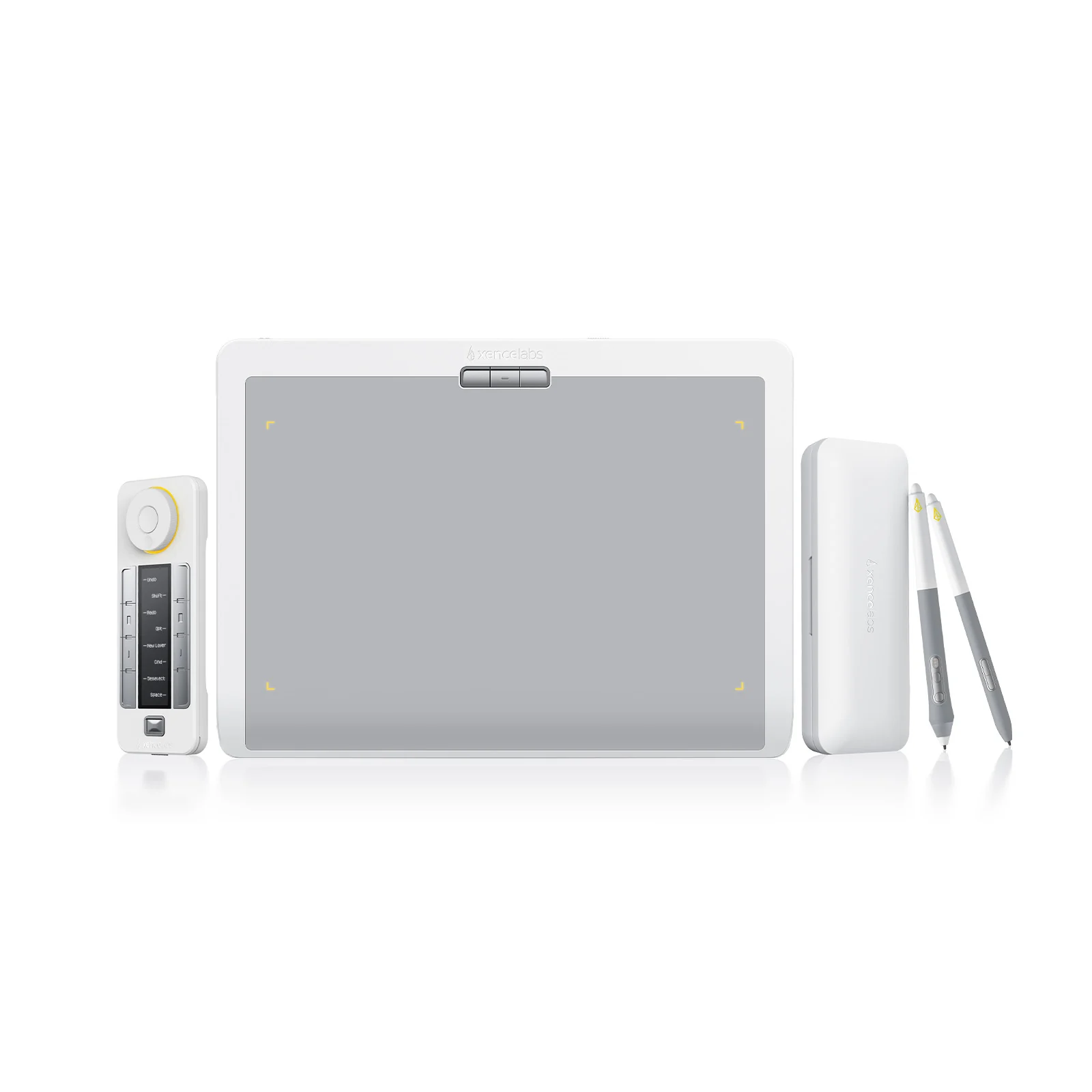
Xencelabs positions the Medium Bundle around two pens, Quick Keys, wireless connection, and included accessories. That package can be attractive when an artist wants a shortcut remote and pen options without piecing together add-ons. The buying question is whether the remote and bundle improve real desk flow or simply add objects to manage.
Huion Kamvas Pro 16 2.5K: consider when direct-on-screen drawing matters
Huion Kamvas Pro belongs in the conversation when the buyer wants a screen, not a blind pen tablet. A display tablet changes the decision: screen quality, parallax, cable routing, stand ergonomics, heat, and color behavior matter alongside pen feel.
XPPen Artist Pro 16 Gen 2: consider as a value display alternative
XPPen Artist Pro 16 Gen 2 highlights a 16-inch display, X3 Pro stylus, high pressure levels, laminated screen, and color-gamut claims. It is not the same decision as Wacom Intuos Pro or Xencelabs Pen Tablet, but it is relevant if the artist wants direct screen interaction.
Studio support model: buy for maintainability as much as feel
A studio should choose hardware it can support. That means naming who maintains drivers, where replacement nibs and pens come from, and how tablets are assigned across machines. A tablet that feels good but creates support confusion may be wrong for shared production.
Buyer Scenarios
Use the shortlist against a real production scenario before buying. A solo designer, a three-person studio, an in-house creative operations team, and a client-side brand manager do not have the same risk. The safest decision names the current project, the person responsible for adoption, the budget owner, the license or support risk, and the exit path if the product stops fitting. If the team cannot name those five things, the product may still be interesting, but the buying decision is early.
For client work, document the source, account owner, license or renewal rule, and files that need to remain accessible after the project closes. That handoff discipline is especially important for fonts, stock assets, templates, hardware warranties, and systems that depend on paid seats. A tool that looks inexpensive at checkout can become expensive when the next designer cannot access the files, when a license does not cover the final deliverable, or when a reviewer approves the wrong version.
How to Choose Without Overbuying
Choose a pen tablet by working style. Retouchers and UI illustrators may prefer a medium surface with programmable controls. Concept artists may care more about drawing area and pen feel. Teams that need direct-on-screen work should compare display tablets separately. Always check return policy because pen feel, hand posture, and desk fit are personal in a way specifications cannot fully predict.
The practical rule is simple: buy for the bottleneck you can name, not for a feature list you might use later. If the bottleneck is version confusion, fix review status. If the bottleneck is license uncertainty, fix rights documentation. If the bottleneck is color trust, fix the monitor and calibration process. If the bottleneck is production speed, use templates as a starting structure rather than a finished brand decision.
Internal Reading
For related decisions, read monitor guide, creative brand screen, software deal guide, review methodology. The goal is to connect each purchase to the broader studio system rather than make isolated tool decisions.
Sources Checked
- Wacom Intuos Pro official page
- Xencelabs Pen Tablet Medium Bundle official page
- Huion Kamvas Pro 16 2.5K official store
- XPPen Artist Pro 16 Gen 2 official store
FAQ
Is Wacom still the safest studio choice?
Often yes when familiarity, driver support, accessory availability, and ecosystem recognition matter. Wacom is the safer default for studios that need low training friction across multiple artists. Xencelabs can be a stronger value when the bundle, Quick Keys remote, and two-pen setup genuinely match the illustrator workflow.
Is Xencelabs better for shortcut-heavy artists?
It can be if the Quick Keys remote genuinely reduces keyboard reaching and the two-pen setup matches the artist's hand preferences. The benefit depends on muscle memory. A shortcut-heavy artist should test whether the remote speeds real work, while a studio manager should consider onboarding time and replacement accessories.
What else should buyers check?
Check current pricing, active driver support, operating system compatibility, pen nib availability, warranty terms, desk space, express key habits, and whether the tablet will be shared. For studios, also confirm who owns the settings profile and whether freelancers can use the hardware without disrupting another artist's setup.
How does Design Overflow handle affiliate context?
Affiliate relationships do not decide the recommendation between Wacom, Xencelabs, Huion, or XPPen. Commercial links are disclosed, and the comparison still prioritizes workflow fit, support risk, ergonomics, and buyer evidence. Readers should verify current pricing and bundle contents directly because tablet packages change often.
Studio Implementation Notes
For drawing tablets, comfort and support are part of production quality. Ask artists to evaluate hand posture, desk reach, shortcut placement, pen weight, cable routing, and driver behavior during a real work session, not only during setup. A studio buying multiple tablets should standardize spare nibs, pens, cables, and driver versions so support is not improvised during a deadline. If an artist travels or moves between home and studio machines, include portability and account setup in the decision. The best tablet is the one the artist can use without thinking about it.
Final Studio Decision Check
The studio should also consider how tablet preferences affect staffing. If every artist brings a different tablet, pen, shortcut layout, and driver expectation, shared machines become harder to maintain. If the studio standardizes too aggressively, artists may lose comfort and speed. A balanced approach is to define a supported baseline while allowing personal equipment for specialists. Keep spare nibs, pens, cables, gloves, and adapters where production happens. Record driver versions that work with the studio machines. Ask artists to document their shortcut layouts so a replacement machine can be set up quickly. These operational details sound small until a deadline is blocked by a missing pen or driver conflict.
Production Proof Before Purchase
A final pre-purchase check should include one real project artifact. For software, use a live component, proof, template, font, or asset instead of a theoretical example. For hardware, place the device in the actual desk setup and confirm cable reach, lighting, ergonomics, warranty, and support path. For marketplaces and licenses, record the exact source, permitted use, account owner, and handoff note. This practical check keeps the decision grounded in production rather than preference. It also gives the studio a reusable audit trail if the client asks why the product was chosen later.
Decision Record
One more safeguard is to write the decision in plain language before purchase: what problem is being solved, what evidence supports the choice, who maintains the tool or asset, what would make the team replace it, and which source should be checked when terms change. That note is small, but it prevents future readers from mistaking a dated preference for a current recommendation.